In this article
- Social media image sizes at a glance
- Why aspect ratio matters more than exact pixels
- Instagram image sizes
- Facebook image sizes
- X (Twitter) image sizes
- LinkedIn image sizes
- YouTube image sizes
- Pinterest image sizes
- TikTok image sizes
- How to resize an image for social media
- Tips for sharp, uncropped social images
- Conclusion
- Frequently asked questions
Upload an image at the wrong size and a social network will crop it for you — often cutting off a face, a headline or your logo. Every platform has its own preferred shapes, and they change from time to time as apps redesign their feeds. The good news is that almost everything comes down to a handful of aspect ratios.
This guide lists the recommended image sizes for Instagram, Facebook, X, LinkedIn, YouTube, Pinterest and TikTok, explains the aspect ratios behind them, and shows you how to resize and compress your images so they upload sharp and fast. When you are ready, resize any image in your browser with the free Image Resizer.
Checked in September 2026. Platforms update their layouts regularly. The sizes below are the widely recommended values at the time of writing; if an upload looks cropped, check the platform's own help pages for the latest guidance.
Social media image sizes at a glance
| Platform | Image type | Size (pixels) | Ratio |
|---|---|---|---|
| Square post | 1080 × 1080 | 1:1 | |
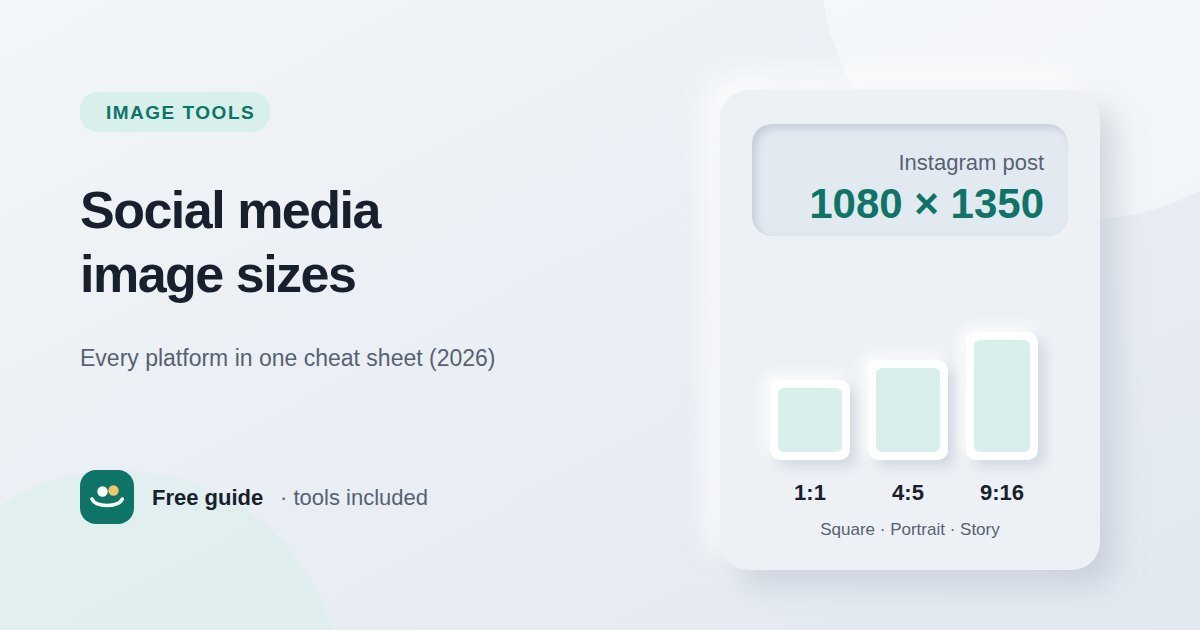
| Portrait post | 1080 × 1350 | 4:5 | |
| Story / Reel | 1080 × 1920 | 9:16 | |
| Feed post | 1080 × 1350 or 1080 × 1080 | 4:5 / 1:1 | |
| Cover photo | 851 × 315 | ≈ 2.7:1 | |
| X (Twitter) | In-feed image | 1280 × 720 | 16:9 |
| X (Twitter) | Header | 1500 × 500 | 3:1 |
| Shared image / link | 1200 × 627 | 1.91:1 | |
| Personal banner | 1584 × 396 | 4:1 | |
| YouTube | Thumbnail | 1280 × 720 | 16:9 |
| YouTube | Channel banner | 2560 × 1440 | 16:9 |
| Standard pin | 1000 × 1500 | 2:3 | |
| TikTok | Video / cover | 1080 × 1920 | 9:16 |
Why aspect ratio matters more than exact pixels
An aspect ratio is the relationship between an image's width and height. A 1080 × 1350 image and a 2160 × 2700 image are both 4:5 — one is simply larger. Platforms mostly care about the ratio, because that decides the shape of the space your image fills. They then scale the file to fit the screen.
That means you can often upload a larger image with the correct ratio and get a sharper result, as long as the file stays within the platform's size limit. Uploading the wrong ratio, on the other hand, always causes cropping or empty bars, however many pixels you use.
Almost every size in this guide uses one of five ratios:
- 1:1 (square) — profile photos and classic feed posts.
- 4:5 (portrait) — takes up more of the screen in mobile feeds.
- 9:16 (full-screen vertical) — stories, reels, shorts and TikTok.
- 16:9 (widescreen) — YouTube thumbnails and landscape images on X.
- 2:3 (tall) — Pinterest pins.
Instagram image sizes
Instagram supports three feed shapes: square (1080 × 1080), portrait (1080 × 1350) and landscape (1080 × 566). Portrait posts fill the most space in the feed, which is why many creators use them by default. Stories and Reels use the full vertical screen at 1080 × 1920.
The profile grid now shows posts as taller rectangles rather than squares, so the edges of square and landscape images can be trimmed in the grid view. Keep important text and faces towards the centre of the frame. Profile photos display as a circle, so leave space around your logo or face — a square image of at least 320 × 320 works well.
Facebook image sizes
Feed images work well at 1080 × 1350 (4:5) or 1080 × 1080 (1:1). Stories use 1080 × 1920. The cover photo is a wide banner of 851 × 315 pixels on desktop, but it is cropped differently on phones, so keep text and important details in the middle. Link previews use a wide 1.91:1 image, typically 1200 × 630 — the same shape used by most websites for their sharing images.
X (Twitter) image sizes
For a single image in a post, 16:9 (1280 × 720) displays cleanly in the timeline without cropping; square 1080 × 1080 images also work. The header image is 1500 × 500 (3:1), and the profile photo is 400 × 400 and shown as a circle. Like Facebook, the header is cropped on some screens, so avoid placing text near the top and bottom edges.
LinkedIn image sizes
Shared images and link previews use 1200 × 627 (1.91:1), and square 1200 × 1200 images are also popular in the feed. The personal profile banner is 1584 × 396 and the company page cover is 1128 × 191 — very wide, short shapes where the profile photo overlaps part of the image on some layouts. Profile photos of 400 × 400 are displayed as circles.
YouTube image sizes
Thumbnails should be 1280 × 720 (16:9). YouTube shows thumbnails very small in search results and on phones, so use large, bold text and a clear subject. The channel banner is uploaded at 2560 × 1440, but only a central strip is visible on every device — keep logos and text inside the middle area. Profile pictures of 800 × 800 are shown as circles.
Pinterest image sizes
The standard pin is 1000 × 1500 pixels, a 2:3 ratio. Taller images may be cut off in the feed, so 2:3 is the safest choice. Pinterest is a visual search engine, so a clear title on the image itself and a descriptive pin title both help people find it. Profile photos display as circles; a square image of 280 × 280 or larger works well.
TikTok image sizes
TikTok is built around full-screen vertical video at 1080 × 1920 (9:16). Covers and photo posts use the same shape. Leave space at the bottom and right-hand side, where captions and buttons appear on top of the image.
How to resize an image for social media
- Choose the size from the table above for where the image will appear.
- Crop to the right ratio first if your photo is a different shape, so you choose what gets cut rather than the platform.
- Open the Image Resizer, load your image and enter the target width and height. Leave "Keep proportions" ticked if you have already cropped.
- Compress the result with the Image Compressor. Smaller files upload faster and platforms re-compress large files anyway, sometimes with worse results.
- Preview on a phone before posting. Most social media is viewed on mobile, where small text becomes hard to read.
Both tools run in your browser, so your images are not uploaded to our server.
Tips for sharp, uncropped social images
- Use the safe zone. Keep text, faces and logos away from the outer 10% of the image, and away from the areas where profile pictures and buttons overlap.
- Pick the right format. JPG is best for photos; PNG is better for graphics with sharp text and flat colours. Our guide to compressing images without losing quality explains the trade-offs.
- Do not upscale small images. Enlarging a 400-pixel image to 1080 pixels makes it blurry. Start from the largest original you have.
- Make text readable at thumbnail size. If you cannot read it when the image is the size of a postage stamp, most viewers will not either.
- Keep a template for each size so every post starts at the correct dimensions.
Conclusion
For most posts you only need a few sizes: 1080 × 1350 for feed posts, 1080 × 1920 for stories, reels and TikTok, 1280 × 720 for YouTube thumbnails and landscape images, 1200 × 627 for LinkedIn and link previews, and 1000 × 1500 for Pinterest. Get the aspect ratio right, keep important details in the centre, then resize and compress your image with the free Image Resizer and Image Compressor.
Frequently asked questions
What is the best image size for Instagram posts?
1080 × 1350 pixels (4:5 portrait) fills the most space in the feed. Square 1080 × 1080 images also work well.
What size is an Instagram story?
1080 × 1920 pixels, a 9:16 vertical ratio. Reels use the same size.
What size should a YouTube thumbnail be?
1280 × 720 pixels, a 16:9 ratio. Use large text, because thumbnails are often displayed very small.
What is the best Pinterest pin size?
1000 × 1500 pixels, a 2:3 ratio. Much taller pins may be cropped in the feed.
Can I use one image size for every platform?
A 4:5 portrait or 1:1 square image works in most feeds, but stories, thumbnails, banners and pins need their own shapes. Creating a few versions of each design gives the best results.
Why does my image look blurry after uploading?
Usually because the original was too small and was enlarged, or because a very large file was heavily re-compressed by the platform. Upload at the recommended size and compress the file sensibly before posting.