In this article
Save an image and you are asked to choose: JPG, PNG or WebP? The choice affects how sharp the picture looks, whether it can have a transparent background and — often most importantly — how large the file is. Pick the wrong one and you can end up with a blurry logo, a screenshot full of smudges, or a photo that is five times bigger than it needs to be.
This guide explains the differences between JPG, PNG and WebP in plain language, shows which format to use for photos, logos, screenshots and websites, and explains how to convert between them. You can convert and compress images in your browser with the free Image Compressor.
The short answer
| Use | Best format | Why |
|---|---|---|
| Photos to share, email or print | JPG | Small files, opens everywhere |
| Logos, icons, graphics with transparency | PNG (or SVG for vector logos) | Sharp edges, transparent background |
| Screenshots with text | PNG | No blurring around letters |
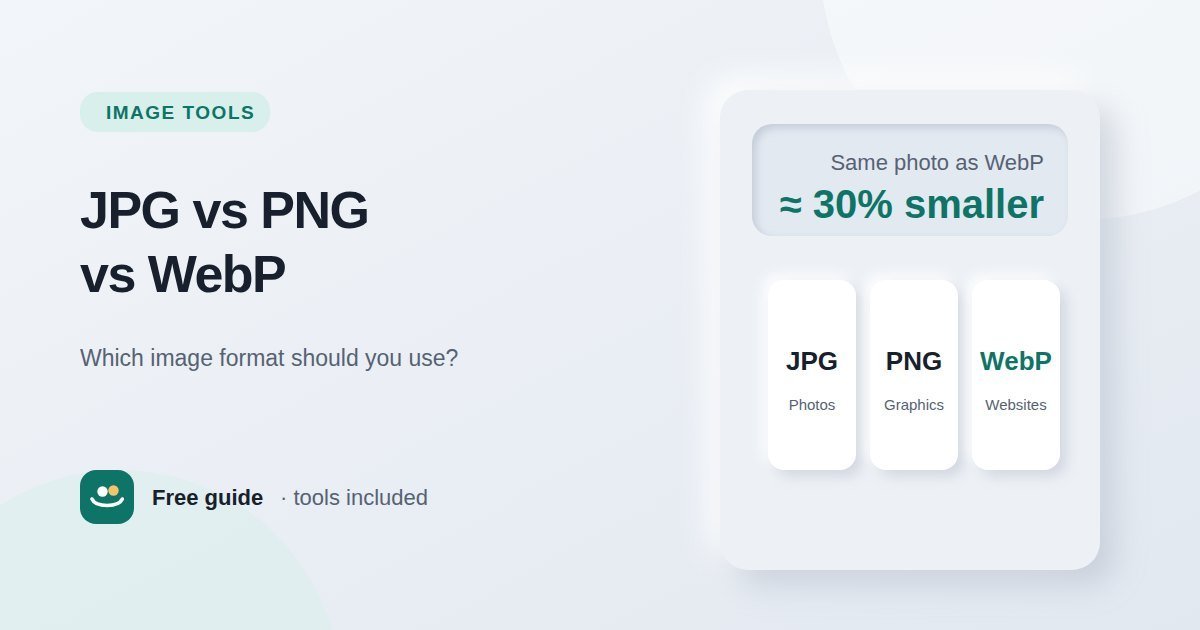
| Images on a website | WebP | Smallest files for similar quality, supports transparency |
| Anything you will edit again later | PNG (or the original file) | No quality lost each time you save |
What is a JPG?
JPG (also written JPEG) is the most widely used format for photographs. It uses lossy compression: it throws away fine detail that the eye is not very sensitive to, which makes files much smaller. At a sensible quality setting, most people cannot see the difference in a photo.
- Strengths: small files for photos, supported by every device, app and website.
- Weaknesses: no transparency; sharp edges and text get fuzzy "artifacts" around them; quality drops a little every time you edit and save again.
JPG is a safe default for photos you send to other people, upload to forms or print.
What is a PNG?
PNG uses lossless compression: it keeps every pixel exactly as it was. That makes it perfect for graphics with flat colours, sharp lines and text, and it supports transparent backgrounds.
- Strengths: perfect quality, transparency, crisp text and edges, safe to edit and re-save.
- Weaknesses: photos saved as PNG are usually several times larger than the same photo as a JPG.
Use PNG for logos, icons, diagrams, screenshots and any image that needs a transparent background. Avoid it for large photos unless you truly need lossless quality.
What is WebP?
WebP is a newer format developed by Google specifically for the web. It can work in both ways — lossy like JPG or lossless like PNG — and it supports transparency and animation too. Google reports that lossy WebP images are typically around 25–34% smaller than comparable JPGs, and lossless WebP images about 26% smaller than PNGs.
- Strengths: smaller files for similar quality, transparency, supported by all modern browsers.
- Weaknesses: some older software, printing services and upload forms still do not accept it.
For images on your own website or blog, WebP is usually the best choice. Keep a JPG or PNG copy for places that do not accept WebP.
JPG vs PNG vs WebP compared
| Feature | JPG | PNG | WebP |
|---|---|---|---|
| Compression | Lossy | Lossless | Lossy or lossless |
| Transparency | No | Yes | Yes |
| Animation | No | No (APNG exists but is rarely used) | Yes |
| File size for photos | Small | Large | Smallest |
| Text and sharp edges | Can blur | Crisp | Crisp in lossless mode |
| Compatibility | Universal | Universal | All modern browsers; some older apps |
| Best for | Photos | Graphics, screenshots | Websites |
Which format should you use?
For photos
Use JPG for sharing and printing, and WebP for web pages. A quality setting between about 70 and 85 keeps photos looking good while cutting the file size dramatically.
For logos and icons
Use PNG when you need a transparent background, or SVG if you have a vector version of the logo — SVG stays sharp at any size and is usually tiny. Never save a logo as a JPG; the edges blur and the background turns into a solid block.
For screenshots
Use PNG. Screenshots are full of text and straight lines, which JPG compression smudges. If the screenshot is mostly a photo, JPG or WebP is fine.
For websites and blogs
Use WebP for photos and most graphics. Smaller images make pages load faster, which helps visitors on mobile data and is one of the factors in Google's page experience signals. Resize images to the size they are actually displayed at before compressing — a 4000-pixel photo shown 800 pixels wide wastes most of its file size. The Image Resizer does this in your browser.
For social media
Upload JPG for photos and PNG for graphics with text. Social networks re-compress everything you upload, so starting from a clean, correctly sized file gives the best result. See our social media image sizes cheat sheet for the right dimensions.
What about GIF, SVG and AVIF?
- GIF is an old format limited to 256 colours. It is mainly used for short animations; WebP or a short video usually does the same job with much smaller files.
- SVG is a vector format, made of shapes rather than pixels. It is ideal for logos, icons and simple illustrations, but not for photos.
- AVIF is a newer format that can compress even better than WebP. Support in modern browsers is good, but tools and upload forms support it less widely, so WebP remains the practical choice for most people.
How to convert JPG, PNG and WebP
- Open the Image Compressor and choose your image. JPG, PNG and WebP files are supported.
- Choose the output format: JPEG, WebP or PNG (lossless).
- Adjust the quality for JPEG or WebP and compare the preview with the original. Zoom in on faces and text.
- Optionally set a maximum width to scale down large images at the same time.
- Download the result. Your original file is not changed, and the image never leaves your device.
Converting does not restore quality. Turning a blurry JPG into a PNG only makes the file bigger — the lost detail cannot come back. Always convert from the best original you have.
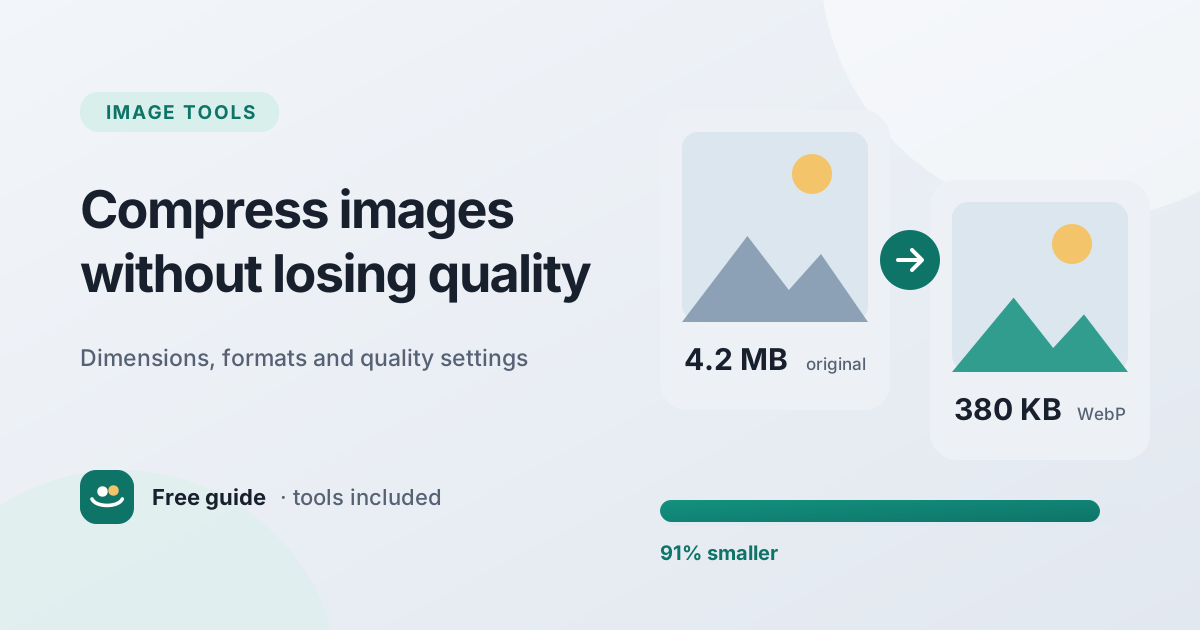
For a deeper look at quality settings and file sizes, read our guide to compressing images without losing quality.
Conclusion
Use JPG for photos you share or print, PNG for logos, screenshots and anything that needs transparency, and WebP for images on websites where speed matters. Resize before you compress, keep your originals, and convert between formats with the free Image Compressor whenever a site or form asks for a specific type.
Frequently asked questions
Is PNG better quality than JPG?
PNG is lossless, so it keeps every pixel exactly. For photos, a high-quality JPG usually looks the same to the eye at a much smaller size. For text, logos and sharp graphics, PNG is clearly better.
Is WebP better than JPG?
For websites, usually yes: WebP files are typically smaller at similar quality and support transparency. JPG is still more widely accepted by older software, print services and some upload forms.
Does converting JPG to PNG improve quality?
No. It keeps the current quality without further loss, but it cannot recover detail that JPG compression has already removed. The file will usually get larger.
Which image format has a transparent background?
PNG, WebP, GIF, SVG and AVIF support transparency. JPG does not — transparent areas become a solid colour, usually white or black.
What is the best image format for a website?
WebP for most photos and graphics, SVG for logos and icons, and PNG as a fallback for graphics where WebP is not accepted.